Someone Sent You a Microsoft Device Code: Verify the Device Before You Enter It
A genuine Microsoft sign-in page can authorize a device you do not control. Learn when a device code is expected and how to respond to an unsolicited one.
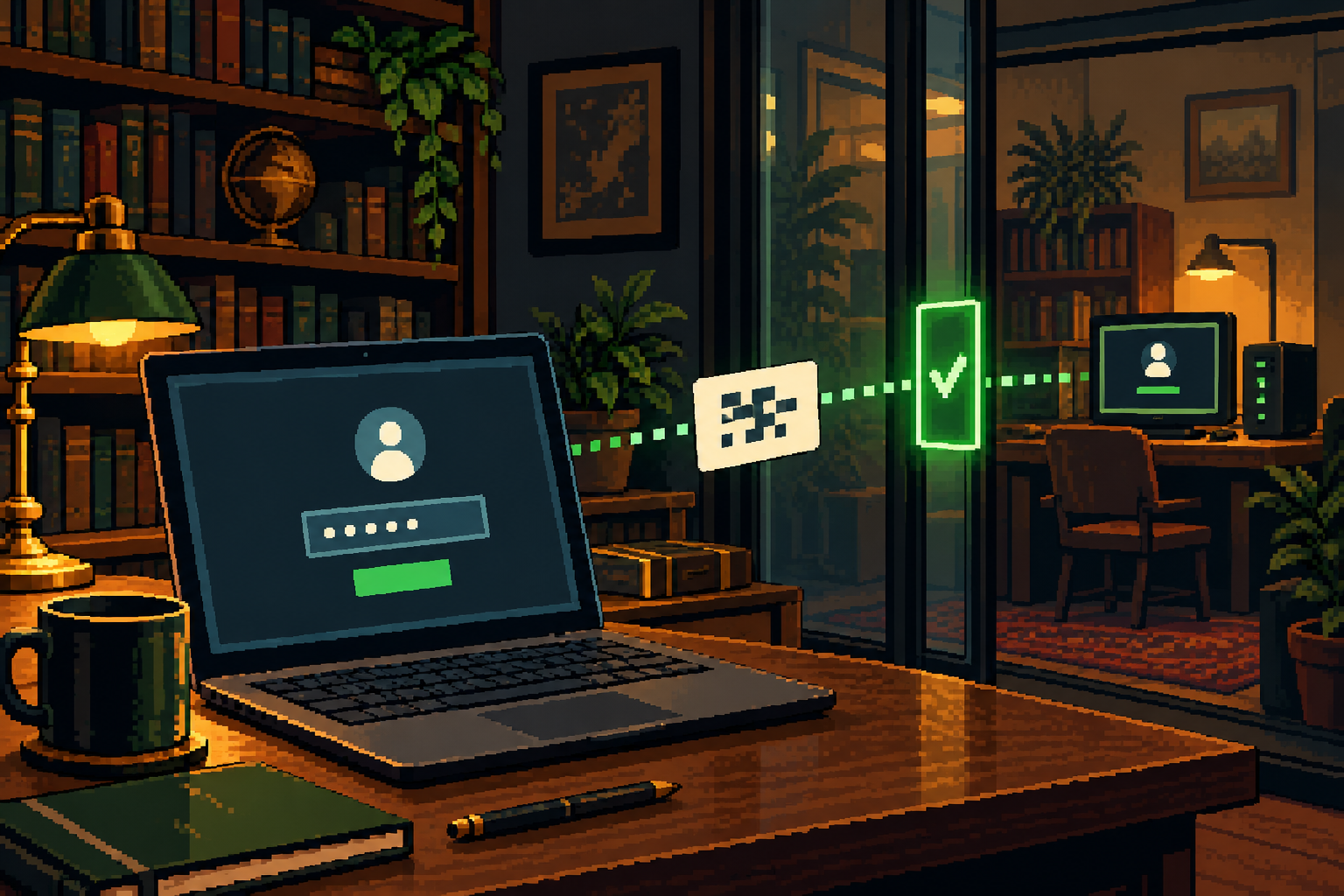
The website can be real while the request is wrong. Before entering a device code, identify the device or application that started the sign-in and the account you are about to connect.
A coworker sends an invitation to view a document. Instead of opening normally, it tells you to visit a familiar Microsoft address and enter a short code. The page looks authentic, and your usual authentication method works. That may feel like a successful security check. But the code can connect your authentication to a session started somewhere else.
What device sign-in is supposed to accomplish
Some devices and applications cannot conveniently display a full sign-in form. A legitimate workflow lets you complete authentication in a browser and connect it to the device waiting for authorization. The important relationship is between that waiting device and the action you intended to take.
In a normal situation, you know what started the request. You opened the application, selected sign in, or began setting up a device. You can recognize the task even if the browser completing authentication is on a different screen.
An unsolicited code reverses that relationship. Someone else supplies the starting point and tells you what to authorize. Inspecting the web address is still useful, but it does not establish ownership of the waiting session.
What the FBI warning actually describes
The FBI’s May 2026 Kali365 advisory describes phishing messages that direct targets to a legitimate Microsoft verification page and ask them to enter a supplied device code. In the reported flow, the victim’s action authorizes an attacker’s device and exposes Microsoft 365 access.
That does not mean every device-code sign-in is malicious or that all Microsoft accounts have been affected. It identifies a specific misuse of a real authentication feature. The lesson is to verify the initiating task, not to distrust every legitimate sign-in page.
Our Kali365 explainer covers the broader threat report. This checklist focuses on the moment a reader receives a code and has to decide what to do next.
Five questions before you continue
- What did I personally start? Name the app, device, or setup task. If the answer is only “someone sent me this,” stop.
- Which account is selected? A browser may choose a work identity automatically even when you expected a personal one.
- Who is waiting for authorization? A document author does not ordinarily need you to sign their device into your account.
- Did I verify the request independently? Use an established contact route, not the reply button or number provided with the code.
- Does the requested access fit the job? A meeting invitation or file review should not require unexplained device enrollment or account access.
These questions work together. A familiar sender can have a compromised account, while a plausible document name can be copied. The strongest explanation is a task you initiated and can independently identify.
If you have not entered the code
Close the sign-in page and leave the message unanswered while you verify it. You do not need to test the code to determine whether it is dangerous. Trying it can be the action that grants access.
For a work request, contact the colleague through a number or company channel you already know. Ask what document they meant to share and whether they can provide it through the organization’s normal storage system. Do not ask them merely to confirm that a string of characters is correct; the real question is whether the authorization itself belongs in the workflow.
If the sender turns out to be genuine but cannot explain the sign-in requirement, involve IT. A confusing process may be legitimate, misconfigured, or malicious. You can pause without first proving which explanation is right.
If you already entered it
Stop the conversation and report the event promptly. Record the account used, the time, the app or service named, and whether you completed an additional sign-in prompt. Preserve the original message through your organization’s reporting system where possible.
| You remember doing this | Say this in the report |
|---|---|
| Entered a supplied code at a genuine provider page | “I may have authorized an unfamiliar device or session.” |
| Approved a permission screen for an app | “I granted application permissions; please review the consent grant.” |
| Typed a password into a linked page | “My credentials may have been exposed; I am unsure whether the page was genuine.” |
| Installed a program while following the message | “There may also be a device-level exposure.” |
These categories can overlap. Do not choose one simply because it sounds less serious. An accurate description lets the responder investigate the right devices, tokens, grants, and activity.
For a personal account, open the provider’s security area independently and follow its recovery guidance. Review unfamiliar sessions and devices. For a work account, let IT coordinate revocation and investigation. A password change alone should not be treated as confirmation that every existing access route has ended.
Why another authentication prompt may not resolve your doubt
Multi-factor authentication asks whether the person signing in can satisfy an account’s authentication requirements. If you complete that check in response to an attacker-controlled task, you can authenticate successfully while still connecting the wrong session.
This is a reason to keep using strong authentication and to examine the task around it. It is not a reason to disable MFA. The CISA phishing-resistant MFA fact sheet explains why stronger methods matter, while a suspicious workflow still deserves scrutiny.
Our unexpected-prompt guide covers requests you did not start. If the prompt follows a code someone supplied, include both events when reporting; they form one sequence.
What administrators can change
The FBI advisory recommends reviewing legitimate dependencies before restricting device-code flows. That is an organizational decision: some applications may depend on the feature, and an unplanned blanket change can interrupt work or recovery.
A useful team exercise is to list where employees genuinely encounter device codes, document the approved process, and make the reporting route visible beside that guidance. Employees should not have to invent a policy while an urgent sender waits for a reply.
Make the verification rule about the request, not the employee’s technical confidence. “I did not initiate this device sign-in” is enough information to stop. A colleague should be able to use that sentence without being expected to identify the exact phishing kit.
A message you can send back through a trusted channel
I received a code-based sign-in request connected to your document. I have paused it because I did not start a device sign-in. Please share the document through our usual system, or ask IT to confirm the required process.
Use that wording only after reaching the colleague independently. It explains the blocked action without revealing a password, forwarding a live code, or accusing a person whose account may itself be compromised. The decision stays simple: identify the device and task before authorizing either.